> For the complete documentation index, see [llms.txt](https://dataqueue.gitbook.io/voicehub-docs/llms.txt). Markdown versions of documentation pages are available by appending `.md` to page URLs; this page is available as [Markdown](https://dataqueue.gitbook.io/voicehub-docs/integrations/mcp.md).
# MCP
This guide explains how to connect MCP servers to your agent, where to choose which tools the agent can use (pathway-wide and per node), and how the agent invokes those tools during a call.
### What is MCP?
**MCP (Model Context Protocol)** is a standard way for AI applications to connect to external tools and data. In VoiceHub you add **MCP servers** (services that expose tools). Your voice agent can then call those tools during live calls—for example to look up weather, query a CRM, or run a custom action. You add the servers, pick which tools are available where, and the agent uses them automatically during the conversation.
***
### What kind of MCP servers we support
VoiceHub connects to MCP servers over **Streamable HTTP** only. Your MCP server must expose an **HTTP or HTTPS** endpoint that implements the MCP protocol using this transport (SSE-based). If your server uses a different transport—for example stdio, or a custom protocol—we cannot connect to it; only Streamable HTTP over the web is supported
**What your server must provide:**
* **Streamable HTTP endpoint** – The URL you enter when adding an MCP server must be the base address of an MCP server that speaks the protocol over Streamable HTTP. We do not support other MCP transports (e.g. stdio).
* **List Tools and Call Tool** – We call **List Tools** to discover and sync the tools we show in the UI, and **Call Tool** to run a tool when the agent invokes it. Your server must support both. We use the text content from the tool result; other response types may not be used.
* **Reachability** – The server must be reachable from our infrastructure over the internet (no firewall blocking our requests). Use HTTPS if you need encryption.
* **Authentication (optional)** – If the server requires auth, it must accept a **Bearer token** in the `Authorization` header. We do not support other auth schemes (e.g. API key headers, Basic auth, OAuth).
If you are choosing or building an MCP server, ensure it supports **Streamable HTTP** and the operations above; otherwise it will not work with VoiceHub.
### Where you configure MCP
There are three places that matter:
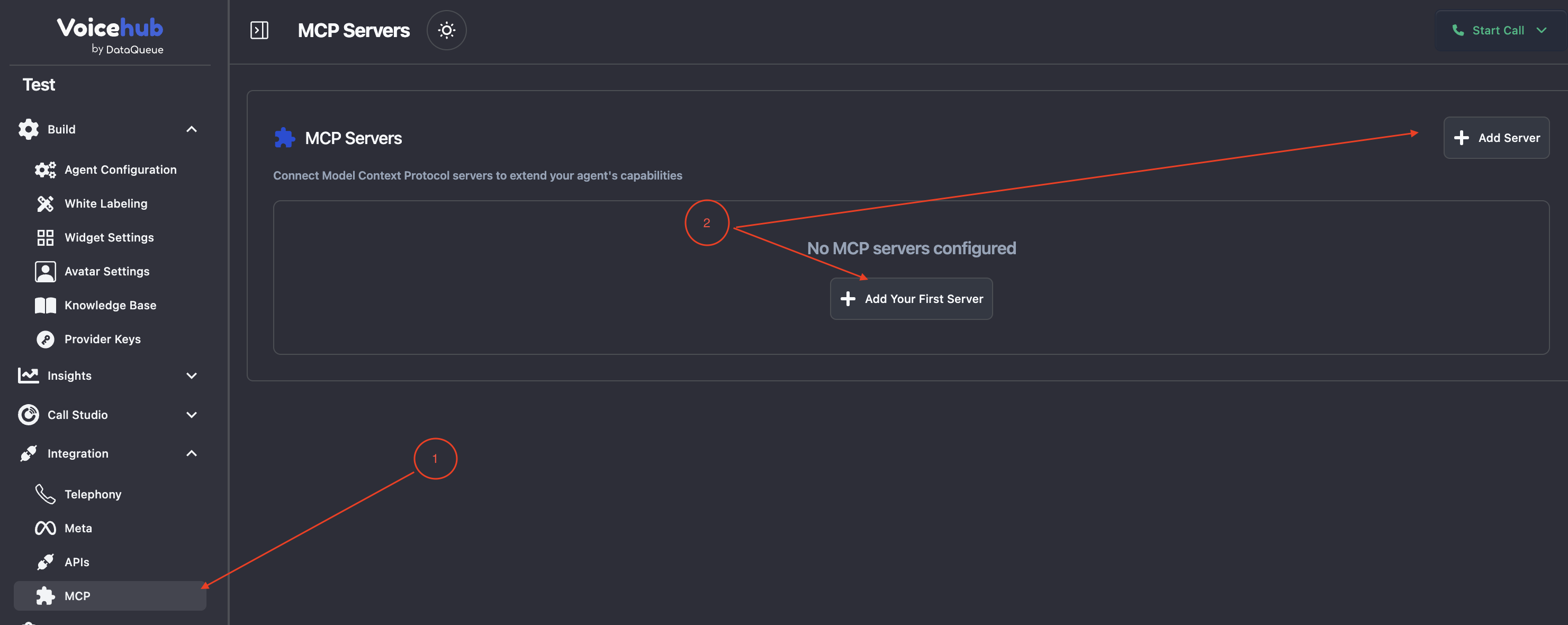
1. **Add and manage MCP servers** – Where you register each MCP server (name, URL, auth). The UI has an **Add MCP Server** action (e.g. in **Integrations** or the **MCP** area of your agent settings). Add MCP servers here first; until a server is added and synced, its tools won’t appear anywhere else.
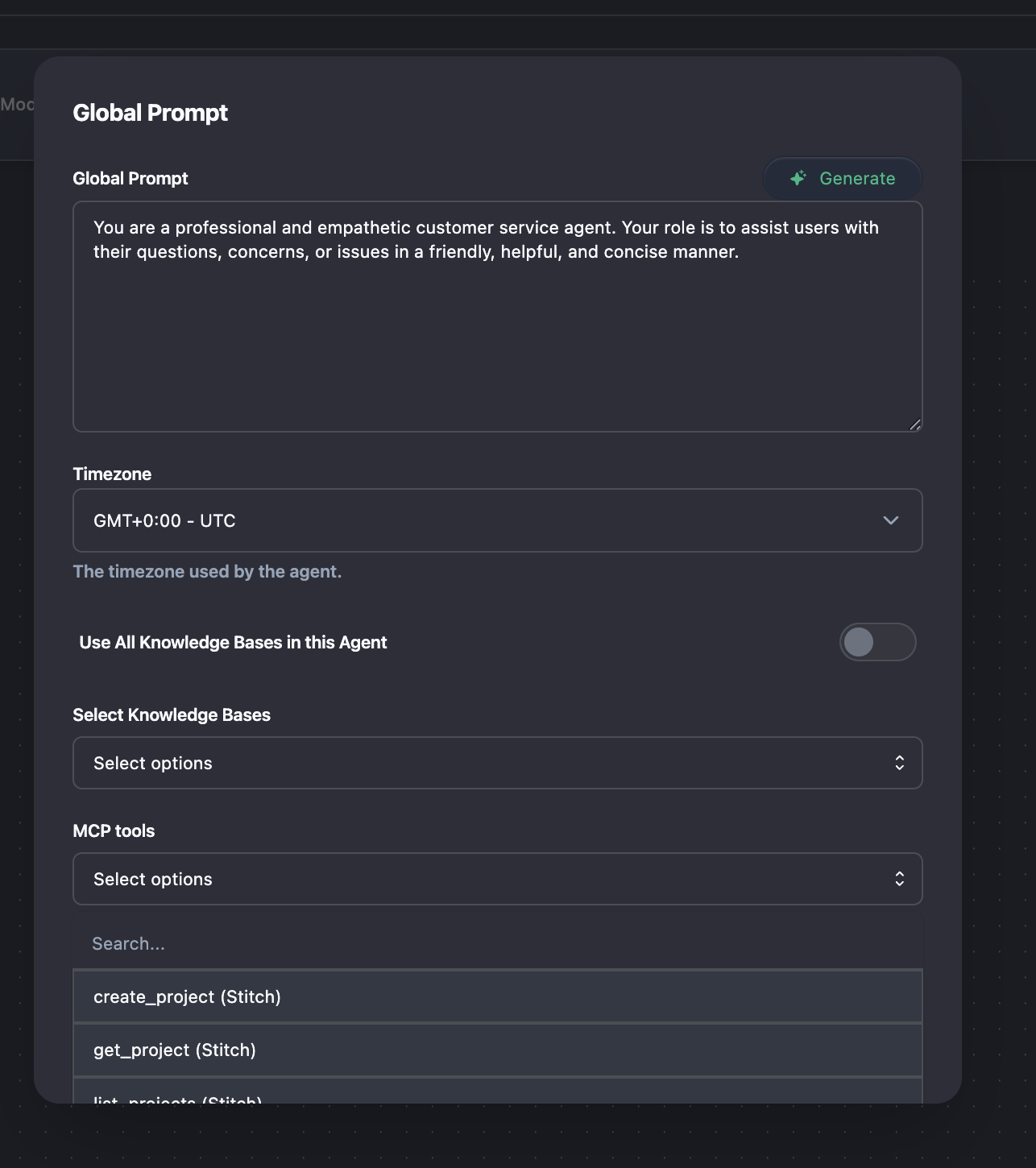
2. **Pathway-wide tools (Global Prompt modal)** – Which MCP tools are available for the **whole pathway**. Open the **Global Prompt** modal (from the pathway). In that modal you’ll see **MCP tools** with the description: “Select which MCP tools are available for the whole pathway.” The list is built from the MCP servers you added; select the tools you want the agent to be able to use on any step of the pathway.
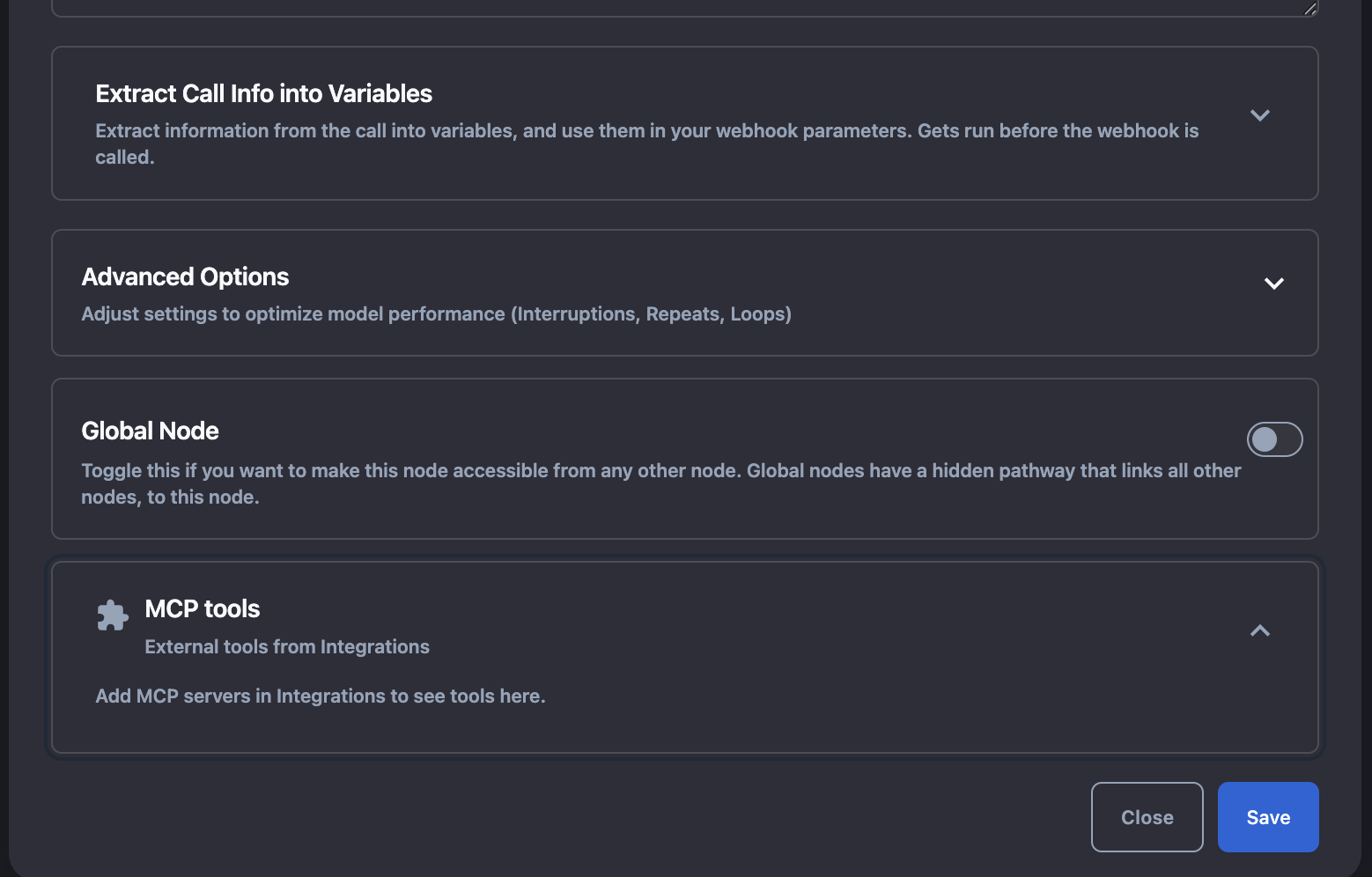
3. **Tools per node** – Which MCP tools are available **on a specific node**. When you edit a none-action node, the node form has an **MCP tools** section. There you can select additional tools that are available only on that node. The agent at that node can use **both** the pathway-wide MCP tools and the tools you selected for that node (they are combined). So: pathway-wide = default set for all nodes; per node = add (or restrict) tools for that step.
**What happens:** We contact the MCP server and fetch the list of tools it offers (name and what each tool does). That list appears in VoiceHub so you can choose which tools to turn on for your agent. When you add a new MCP server, we fetch the tools automatically. If you change something on the MCP server later, use **Sync** so the list in VoiceHub stays up to date.
If no MCP servers are configured, the UI may tell you to “Add MCP servers in Integrations” (or similar) so that tools appear in the Global Prompt modal and in node forms.
***
### Adding an MCP server
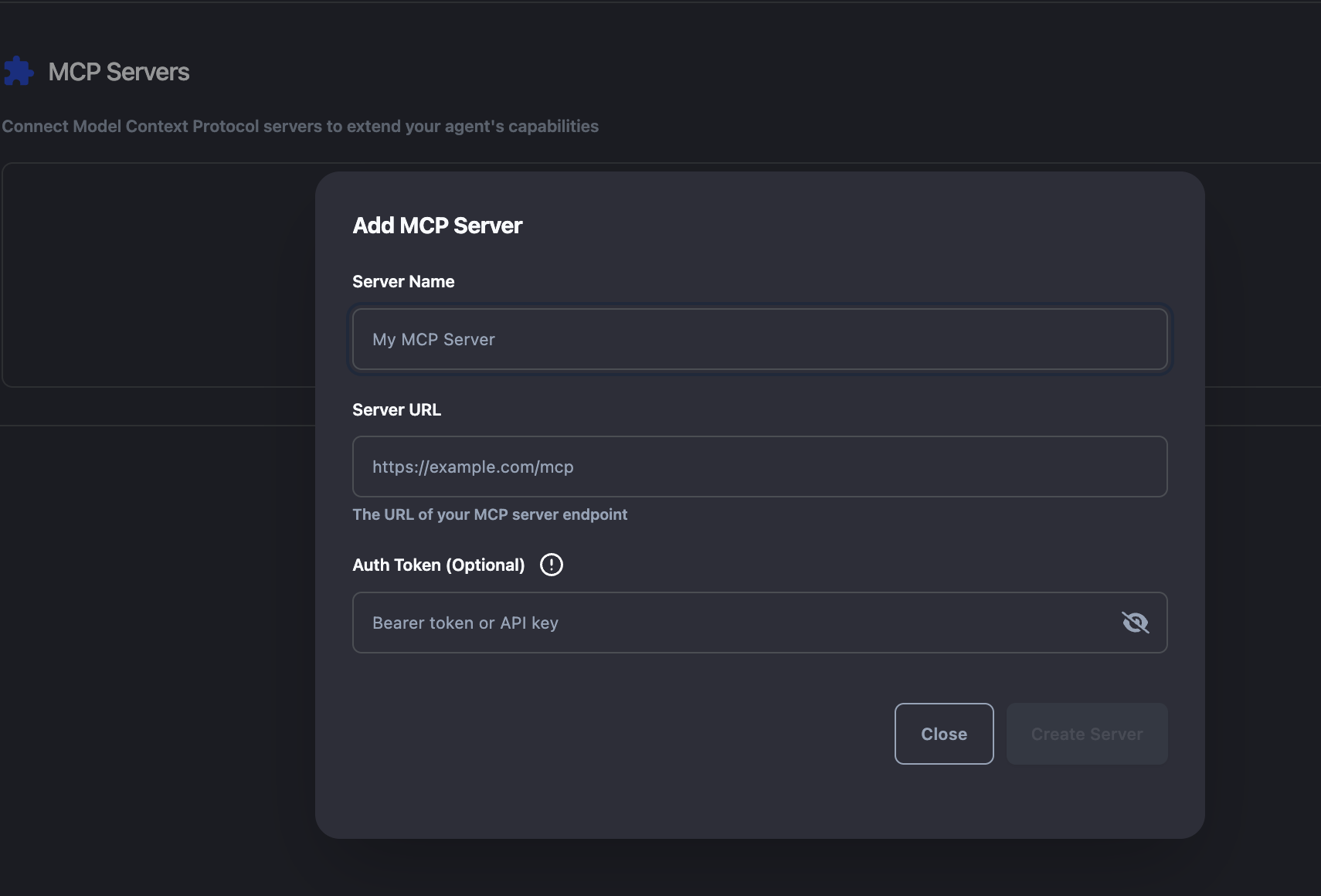
**Where:** Use **Add MCP Server** (in Integrations / MCP settings).
**What you enter:**
* **Name** – A label for the server (e.g. “CRM API”).
* **URL** – The full URL of the MCP server endpoint (e.g. `https://mcp.example.com/mcp`). The server must support **Streamable HTTP** (see “What kind of MCP servers we support” above).
* **Auth token (optional)** – If the server requires authentication, enter the token here. We only support **Bearer token** auth: we send it in the `Authorization: Bearer ` header when we talk to the server. If the server uses a different auth scheme, it won’t work until the server supports Bearer or we add more options.
You can **Test** the connection (we try to list tools) and **Sync** to refresh the tool list after the server changes. When you add a new server, we sync tools automatically.
***
### Choosing which tools the agent can use
* **Pathway-wide** – In the **Global Prompt** modal, under **MCP tools**, select the tools that should be available for the whole pathway. The dropdown/list shows tools from all added MCP servers (“tool\_name (Server name)”).
* **Per node** – In each **node** that supports tools, open the node form and find the **MCP tools** section. Select the tools you want for that node. At runtime the agent on that node gets the **union** of pathway-wide MCP tools and that node’s MCP tools. So you can:
* Rely only on pathway-wide selection (same tools on every node), or
* Add or narrow tools per node so some steps have extra or different tools.
Only tools that are selected (pathway-wide and/or on the current node) are available to the agent; the agent never sees or invokes tools you didn’t enable.
***
### What happens when the agent uses a tool on a call
1. **When the call starts** – We know which MCP tools are enabled for the current node (pathway-wide + node’s list). The agent is given access only to those tools (plus any built-in tools). The agent receives each tool’s **name and description** (and parameters) so it knows what is available.
2. **When the agent needs a tool** – During the conversation the agent may decide to call a tool (e.g. get weather for a city). It picks one of the enabled tools and sends the right inputs.
3. **We run the tool** – We talk to the corresponding MCP server, call the tool with those inputs, and get the result (e.g. text).
4. **The agent continues** – The result is passed back to the agent, which uses it to respond to the caller (e.g. by saying the answer out loud).
5. **When the call ends** – We stop using the MCP server for that call; no long-lived connection is kept.
So: you enable tools in the **Global Prompt** modal and/or **per node** → on a call the agent can invoke only those tools → we call the MCP server and return the result to the agent. You don’t trigger tools manually; the agent does it from the conversation.
**Telling the agent when to call a tool**
The agent sees the list of enabled tools and their descriptions. To get **reliable** tool use, you can explicitly instruct it when to call which tool in your **global prompt** (Global Prompt modal) or **node prompt** (the prompt text on each node). For example: “When the user asks about the weather, use the get\_weather tool” or “If the user wants to check their balance, call the account\_balance tool.” Without such instructions, the model may still use tools based on their descriptions alone, but adding clear prompt instructions (e.g. “call tool list projects if the user asks for Projects”) makes tool use more predictable.
***
### Authentication we support
We only support **Bearer token** authentication to the MCP server:
* You set an optional **auth token** when adding or editing the MCP server.
* We send it as: **`Authorization: Bearer `** on every request to that server (listing tools and invoking tools).
* To remove auth, clear the token in the server form (or leave it empty when creating).
We do **not** support other schemes (e.g. API key in a custom header, Basic auth, OAuth) unless we add them in the future. Your MCP server must accept Bearer token if you need auth.\
Authentication is configured **per MCP server**, not per tool: all tools on the same server share the same token. It is not possible to use different credentials for different tools on the same server.
***
### How tool selection works per node
* **Pathway-wide MCP tools** – Configured in the **Global Prompt** modal. These tools are available on **every** node that uses tools (unless you override with a node-specific list; see below).
* **Per-node MCP tools** – Configured in **each node’s** form in the **MCP tools** section. The list you choose there is **added to** the pathway-wide list for that node. So at runtime, for a given node, the agent can use: **pathway-wide MCP tools** and **that node’s MCP tools.**
You cannot today restrict a node to *only* its own list (no pathway-wide); both sets are always merged. To have different tools on different nodes, set the common tools pathway-wide and add or emphasize node-specific ones in each node’s MCP tools section.