> For the complete documentation index, see [llms.txt](https://dataqueue.gitbook.io/voicehub-docs/llms.txt). Markdown versions of documentation pages are available by appending `.md` to page URLs; this page is available as [Markdown](https://dataqueue.gitbook.io/voicehub-docs/getting-started/create-your-first-agent.md).
# Create your first agent
## Step 1: Create Your Voice Agent
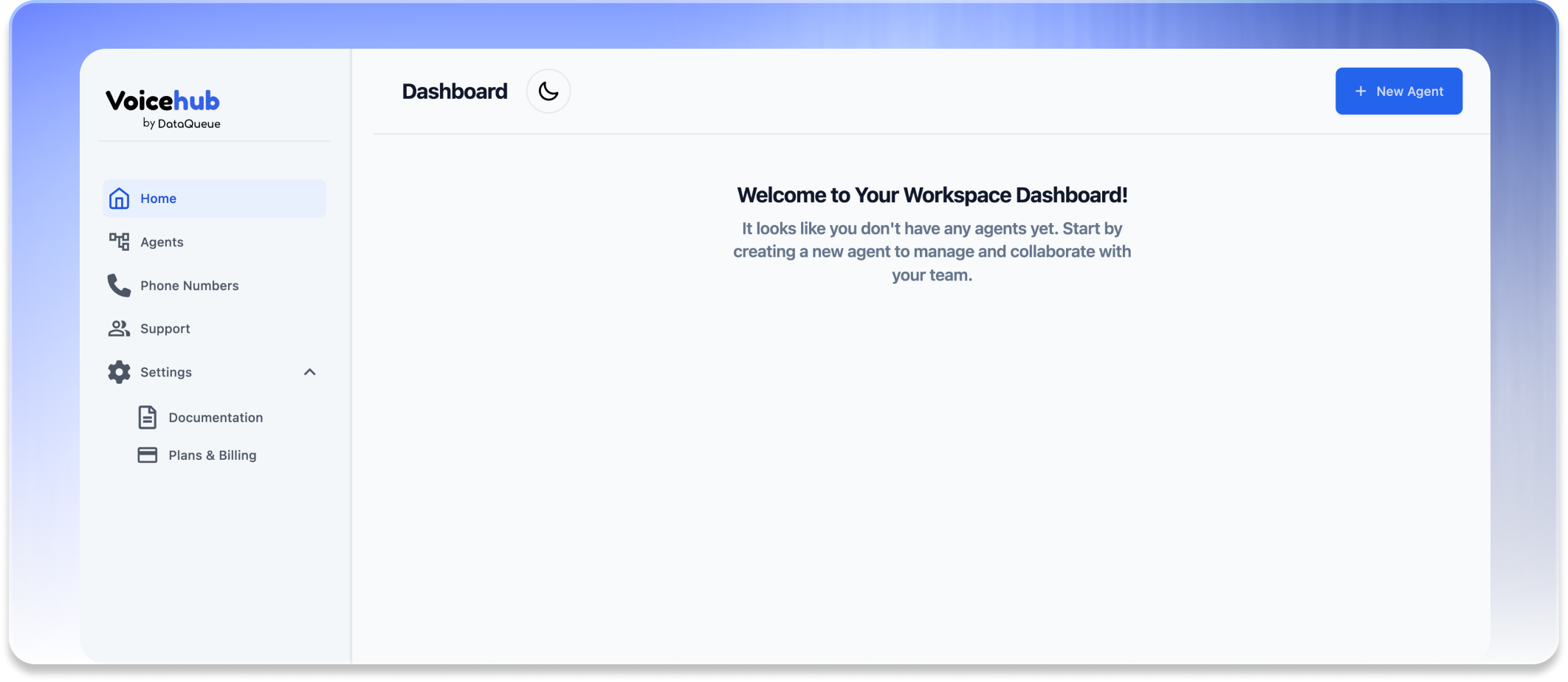
1. Click the **"New Agent"** button to get started.
2. Choose a template that fits your use case, or start from a **blank template** if you want to build from scratch.
3. Fill in the **Agent Title** and **Description**.
* Example: *“Restaurant Assistant” – a voice agent that helps customers book tables and ask menu questions.*
## Step 2: Agent Configuration
After creating your agent, the first step is to choose how you want to configure it. You have two configuration modes, depending on your needs:
### Option 1: DQ Mode (Arabic/English/Dutch-Optimized Stack)
* This is the default mode when creating a new agent.
* Uses DataQueue’s fully optimized models for speech recognition (STT), conversation logic (LLM), and speech synthesis (TTS).
* Designed for MENA use cases where accuracy, latency, and sentiment detection matter most.
* Locked: you cannot select or override providers manually.
* Voice setup and tuning is handled via the DQ Configs tab.
### Option 2: Custom Mode (Provider Flexibility)
* Offers full flexibility in model selection and configuration.
* Choose from a wide range of supported providers for:
* STT (e.g., Deepgram, Gladia, Azure)
* LLM (e.g., OpenAI, Claude, Cohere)
* TTS (e.g., ElevenLabs, Cartesia, Azure)
* Great for enterprise developers or use cases where custom prompts or models are preferred.
## Switching Between Modes
In the Configuration page (top right):
* Select the language (e.g., Arabic, English)
* Toggle between DQ Mode and Custom Mode
When using Custom Mode, selecting a language automatically filters the models shown by the provider to only include those that support the selected language. This ensures you're always choosing from compatible options.
## Custom Mode Tabs
When in Custom Mode, you’ll have access to the following configuration tabs:
* **Models** – Choose your STT and LLM providers
* **Voices** – Choose your TTS provider. Preview TTS voice options (Includes a field to test voices live text-to-audio samples)
* **Pathway** – Build your agent's logic visually or with a global prompt
* **VoIP** – Assign phone numbers (inbound/outbound)
* **Analysis** – Define summaries, resolution tags, sentiment rules
* **Widget** – Add and customize the embedded web voice interface
* **White Labeling** – Apply brand and domain settings for your team/client
Use [Provider Keys](/voicehub-docs/agent-design-and-usage/provider-keys-custom-mode-only.md) to enable these integrations.
## DQ Mode Tabs
When in DQ Mode, configuration is simplified and optimized:
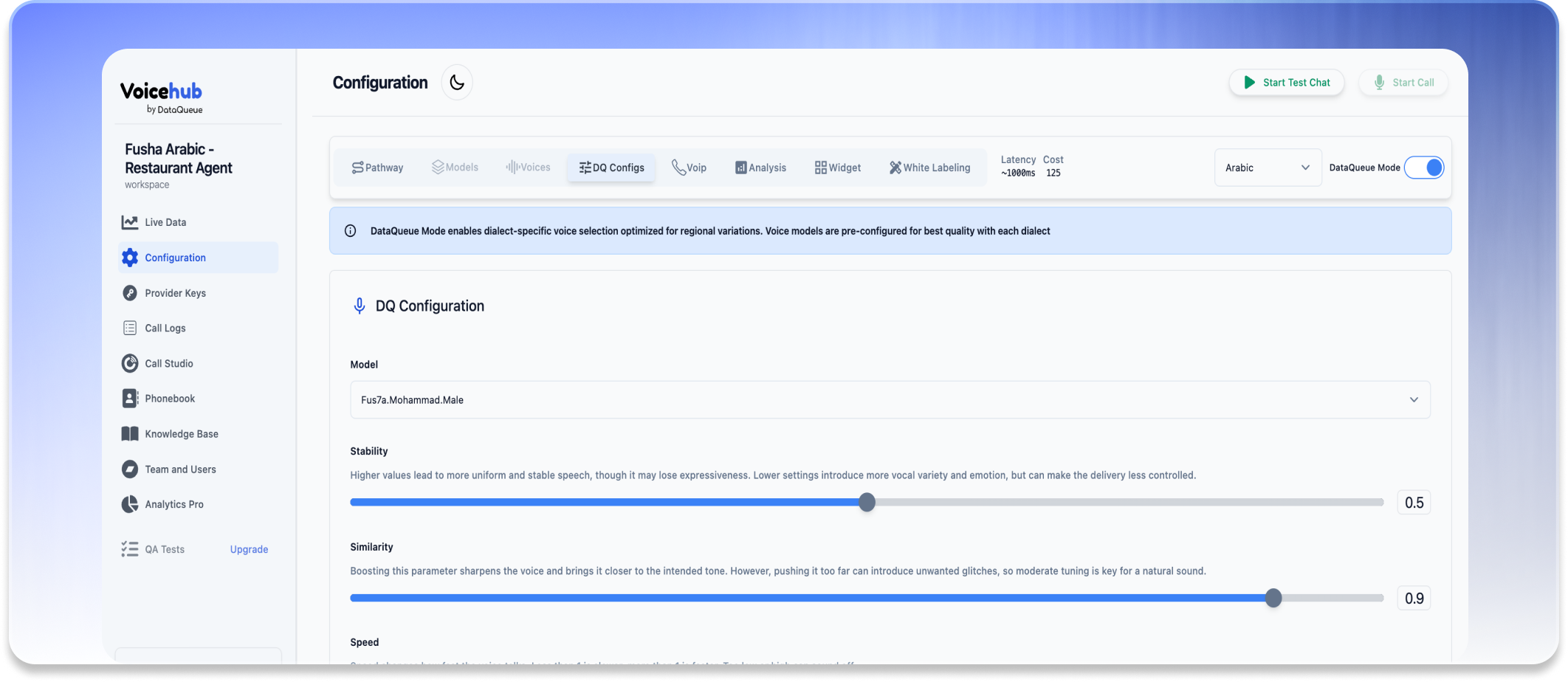
* **DQ Configs** – Select between Arabic, English, and Dutch voice
* Customize Speech delivery using:
* **Stability** – Higher values lead to more uniform and stable speech, though it may lose expressiveness. Lower settings introduce more vocal variety and emotion, but can make the delivery less controlled.
* **Similarity** – Boosting this parameter sharpens the voice and brings it closer to the intended tone. However, pushing it too far can introduce unwanted glitches, so moderate tuning is key for a natural sound.
* **Speed** – Changes how fast the voice talks. Less than 1 is slower, more than 1 is faster. Too low or high can sound off.
* **Pathway** – Same as above, build logic or use a global prompt
* **VoIP, Analysis, Widget, White Labeling** – Same as in [Custom Mode](#option-2-custom-mode-provider-flexibility)
You won’t see **Models** or **Voices** tabs here — they’re preconfigured under the hood.
## Prompt vs. Pathway: Two Ways to Build Logic
Once you’ve selected your mode (DQ or Custom), you can define how the agent should behave. VoiceHub supports two approaches to building logic:
### Option 1: Global Prompt
A single prompt that guides the agent’s entire behavior — similar to system prompts in traditional LLM apps.
Use when:
* You want a **quick setup** for straightforward tasks
* Your agent only needs to answer **general questions** or operate reactively
* Your use case is **simple and reactive**
### Option 2: Conversational Pathway
A visual drag-and-drop builder to define complex flows, variables, and decision logic using connected nodes.
Use when:
* You need **branching logic** (e.g., verification → escalate → book → end)
* You want to **extract variables** (e.g., date, location)
* You want fine **control over what the agent says** and when
### Can they be combined?
Yes. You can start with a global prompt, then build out a Conversational Pathway later — or use the pathway as the primary logic and include a global fallback prompt.
This gives you flexibility for both rapid prototyping and scalable complexity.